Your account
Two-factor and passkeys
An authenticator app or a passkey adds a second step after your email code.
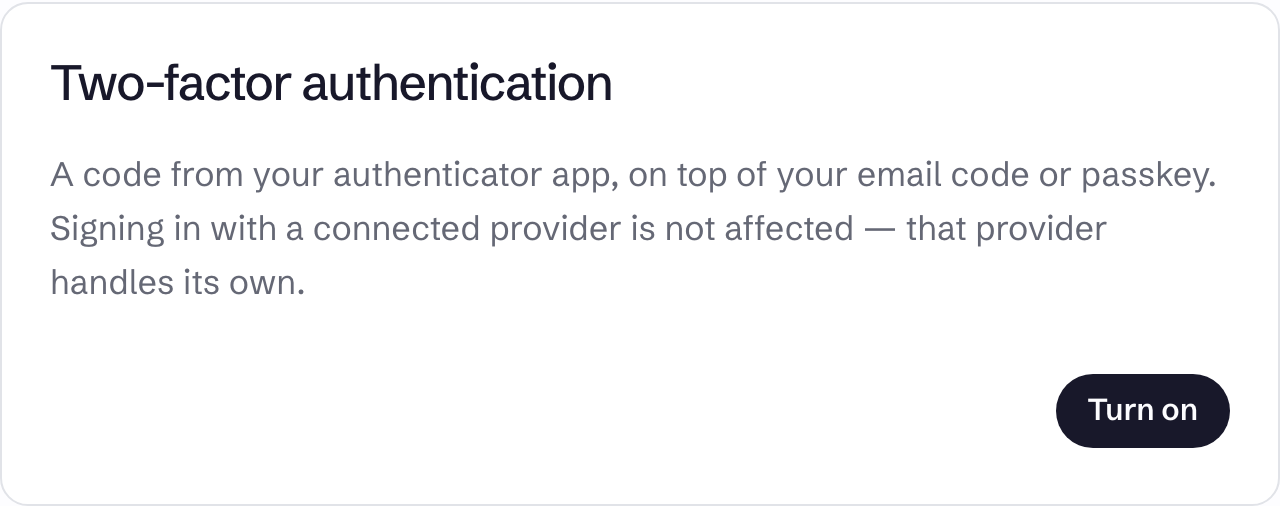
Both are set up on your Profile. They are alternatives, not two extra steps: with both set up, you are offered the passkey first and can use the app instead. A passkey does not replace the email code.
Neither applies when you sign in with a connected provider, which handles its own two-factor.
Turn on two-factor authentication
- Under Two-factor authentication, choose Turn on.
- Scan the QR code with your authenticator app, or enter the key by hand.
- Save the eight recovery codes somewhere safe.
- Enter the code from the app under Enter the six-digit code to finish and choose Confirm.
Nothing changes at sign-in until you confirm. If you choose Cancel or close the page, start again with Turn on.
At sign-in, after your email code, enter the Six-digit code from the app. The second step must be finished within 5 minutes, or you sign in again.
Recovery codes
If you lose your phone, choose Use a recovery code instead at sign-in. Each code works once.
While two-factor is on, Show recovery codes on your profile lists the unused ones. Replace them issues eight new codes, and the old ones stop working.
Turn it off
Under Two-factor authentication, choose Email me a code, enter it in Code from your email, and choose Turn off.
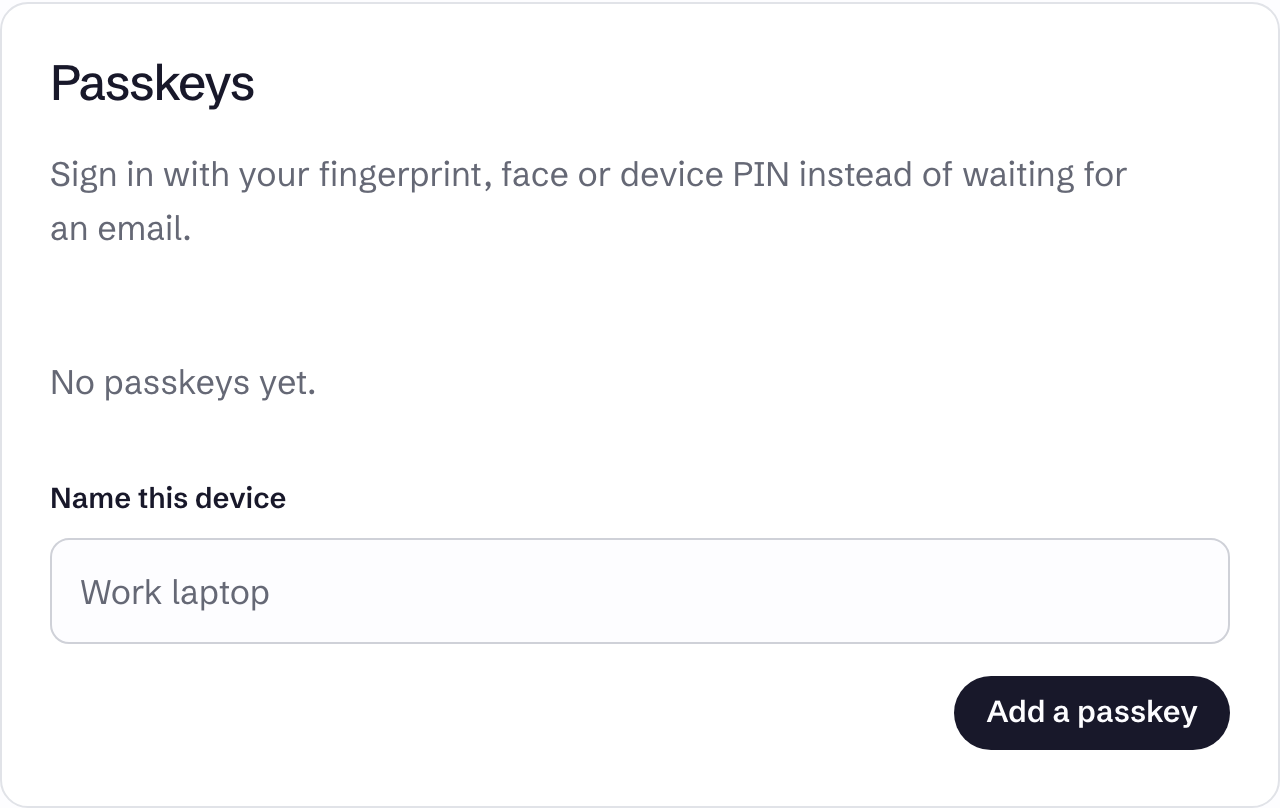
Passkeys
A passkey uses your device's fingerprint, face or PIN.
- Under Passkeys, enter a name in Name this device.
- Choose Add a passkey and follow your browser's prompts.
At sign-in, after your email code, choose Use my passkey. If two-factor is also on, Use your authenticator app instead is offered. The list on your profile shows when each passkey was added and last used, and Remove deletes one. A browser that can't create passkeys shows This browser cannot create passkeys.
Keep a way back in
Recovery codes belong to the authenticator app. If a passkey is your only second step and you lose it, you have no recovery codes to fall back on. Add a passkey on a second device, or turn on two-factor as well. See I can't sign in.