Tracking time
Add and edit time entries
Use a manual entry for work you did not time, and edit an entry to correct one that is wrong.
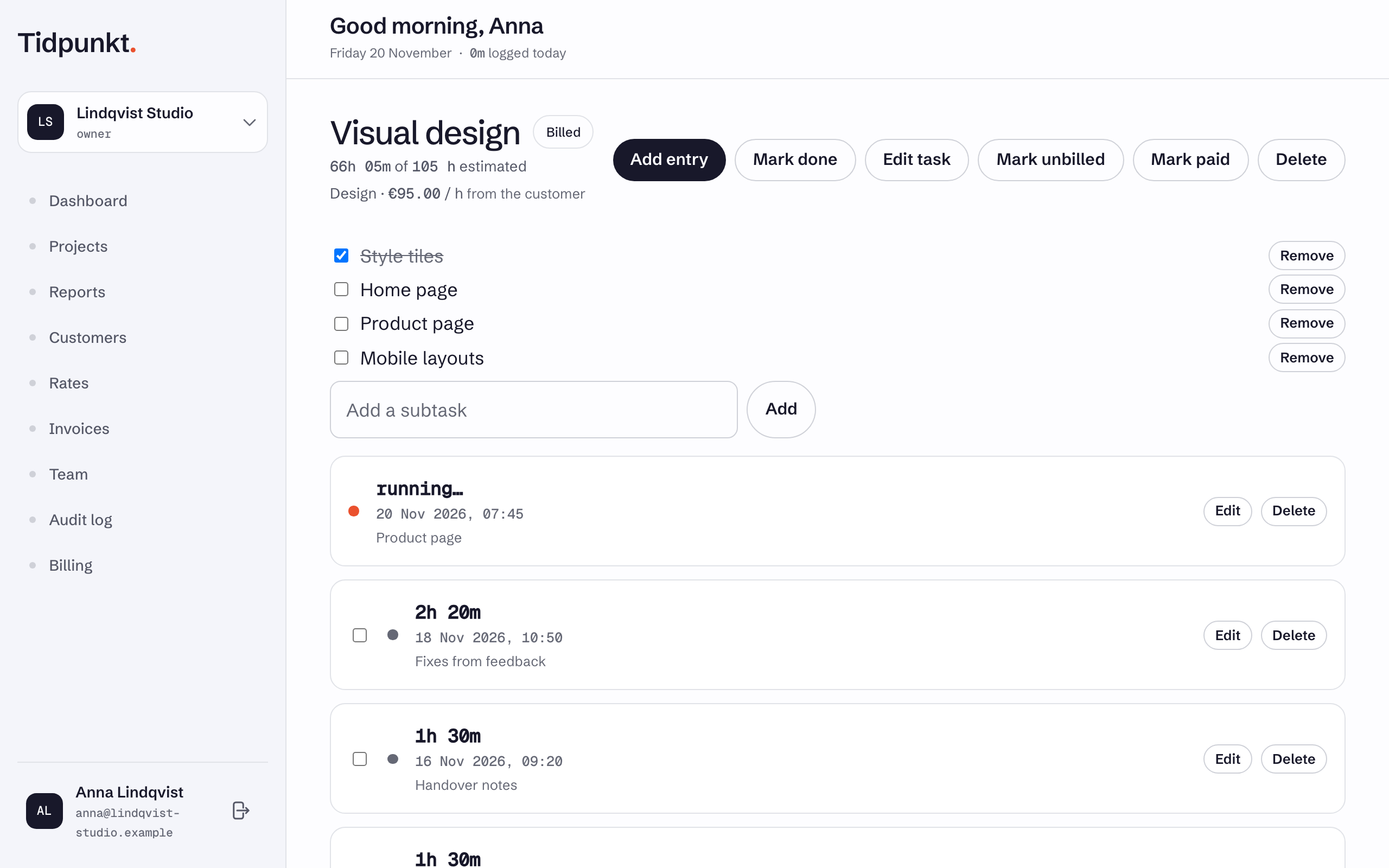
Entries are listed on the task page. Open Projects, a project, then the task's name.
Add an entry
- Choose Add entry at the top of the task page.
- Set Start and Stop. They default to the last hour.
- Optionally add a Note, up to 1000 characters.
- Choose Add.
Stop must be after Start, and neither can be in the future. A manual entry is always finished, so it never starts a timer. It is recorded as yours, and any member can add one. Tidpunkt does not check whether an entry overlaps another. Times are entered in your local time; see How do time zones work?
Edit an entry
Choose Edit on the entry, change Start, Stop or Note, and choose Save.
You can edit your own entries. Owners and admins can edit anyone's.
- To end a running timer here, fill in Stop.
- A finished entry cannot be made to run again by clearing Stop. Start the timer instead.
Invoiced entries are locked
An entry on an invoice cannot be edited or deleted, and that includes draft invoices. The buttons still appear, but saving is refused with this message: "This time is on an invoice. Delete the draft or void the invoice to change it." See Paid and void invoices.
Older entries
Some plans show a limited history, so older entries can be hidden from the task page. They are kept, not deleted. See Compare plans.
To remove entries or change several at once, see Delete and bulk-edit entries.