Reports
Client links
A client link is a web page you send to a customer, showing the hours for one customer or project without an account.
Client links are available on every plan, including Free. Only owners and admins can create or delete them.
What the page shows
The page shows your workspace's name, the title you chose, the period and the total hours, then hours by task and a list of entries with date, project, task, note and hours.
It shows no rates, amounts or member names. Task names and notes are visible, so write them with that in mind.
The page includes the time of all members, billable or not, for the chosen customer or project and period. Other report filters do not carry over. Entries older than your plan's history limit are hidden.
Create a link
- Open Reports.
- Choose a Customer or Project, and set From and To.
- In Client links, below the report, choose Share with client.
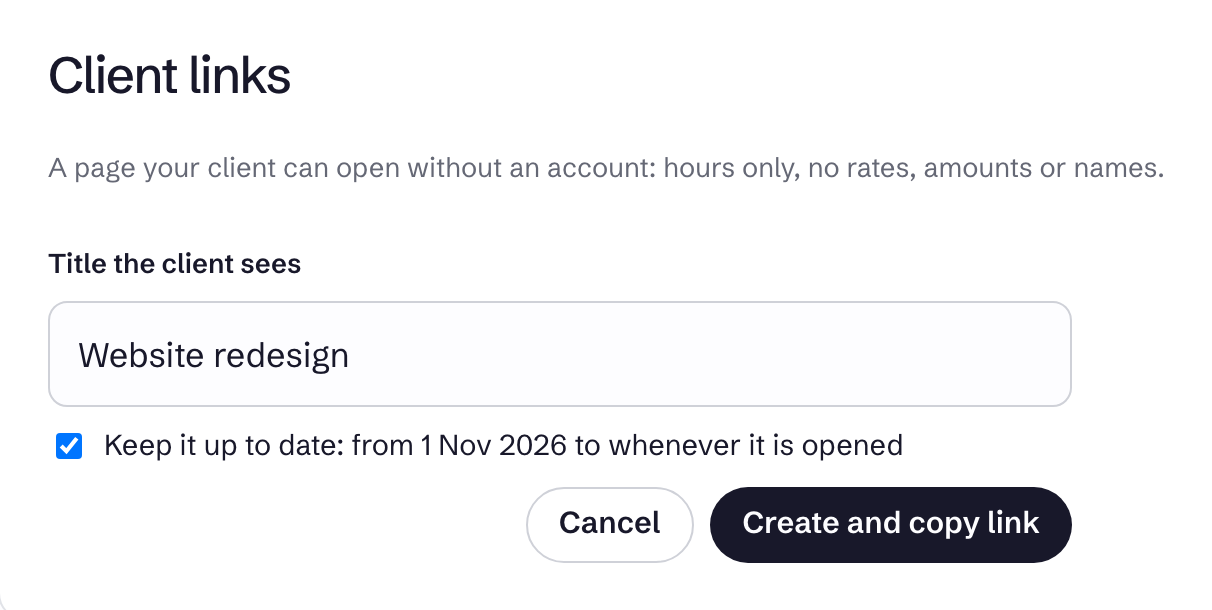
- Edit Title the client sees.
- Leave Keep it up to date ticked if the page should run from your start date to the day it is opened. Untick it to end the page at your To date.
- Choose Create and copy link. The address is copied to your clipboard.
Share with client stays disabled until you pick a customer or project.
Anyone with the address can open the page, and links do not expire. On a White label workspace with its own domain, the link uses that domain. See White label.
Manage links
Existing links are listed in the same card, with their period and when they were last opened. Use Copy link or Open as needed.
Revoke a link
Choose Delete on the link and confirm. The page stops working for everyone who has the address, and you cannot bring the link back. Create a new one if you need it again.
If you delete the customer or project behind a link, the page stays up but shows no time.