Projects and tasks
Tasks and subtasks
Tasks are what you track time against, and each one belongs to a project.
Owners and admins create and change tasks. Members can track time on them and tick subtasks. See Roles and permissions.
Add a task
Open a project and choose Add task. Enter a Name. If your workspace has services, you can also pick a Service.
To change anything later, open the task and choose Edit task.
| Field | What it does |
|---|---|
| Name | The task's name, up to 255 characters. |
| Service | The kind of work, which can decide the rate. See Rates and services. |
| Estimate (hours) | Hours expected for this task. |
| Billing for this task | Hourly rate or Fixed price, with a currency. |
Leave the hourly rate blank to inherit it. The line under the task's name shows the rate in use and where it came from. Hourly rates need a Freelancer, Standard, Professional or Business plan.
A task's estimate is separate from the project's budget. When tracked time passes it, the task shows Over estimate. No email is sent. Project budgets are covered in Estimates and budget alerts.
Billable tasks
New tasks are billable, and the task form has no setting to change that. A non-billable task shows Non-billable and adds nothing to billable amounts.
Fixed prices
A task with a Fixed price bills nothing per hour. The price counts once, in the period the task is marked billed, and only if the task is billable. A task under a fixed-price project shows Covered by the project's fixed price. If that task has a fixed price of its own, it is charged on top of the project's price.
Status
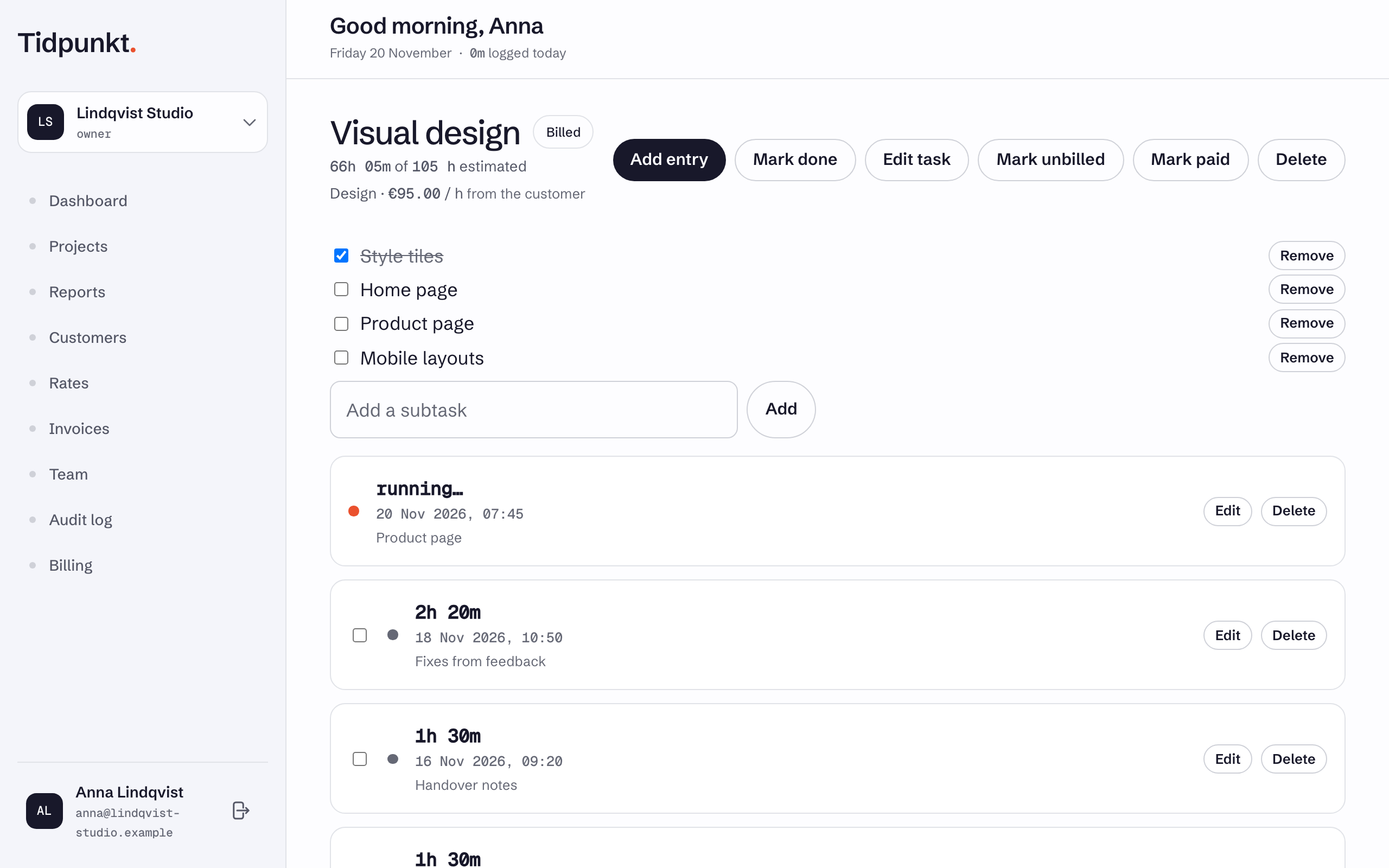
Owners and admins set status from the task page. On the project page, each task has a tick button for done and one button for the next billing step.
| Status | Buttons on the task page |
|---|---|
| Done | Mark done, Reopen |
| Billed | Mark billed, Mark unbilled |
| Paid | Mark paid, Mark unpaid |
Marking a task paid also marks it billed, and marking it unbilled clears paid. Issuing an invoice marks its tasks billed, and marking the invoice paid marks them paid. See Create and issue invoices.
Subtasks
Subtasks are a checklist on the task page. Time stays on the task, so you cannot track time against a subtask.
Owners and admins add one with the Add a subtask field and take one off with Remove. Any member can tick one.
Delete a task
Open the task, choose Delete and confirm. Tidpunkt refuses if any of the task's time is attached to an invoice, including a draft.
There is no undo
The task and its entries disappear from the project and from Reports, and you cannot restore them.