Tracking time
Delete and bulk-edit entries
You can delete one entry at a time on any plan, and move or delete several at once on paid plans.
Bulk editing is included in the Freelancer, Standard, Professional and Business plans, and during the trial.
Deleting cannot be undone
A deleted entry is gone, and its time leaves your reports. There is no way to restore it.
Delete one entry
On the task page, choose Delete on the entry and confirm. You can delete your own entries. Owners and admins can delete anyone's. This also works on a running timer, and discards it.
Move or delete several
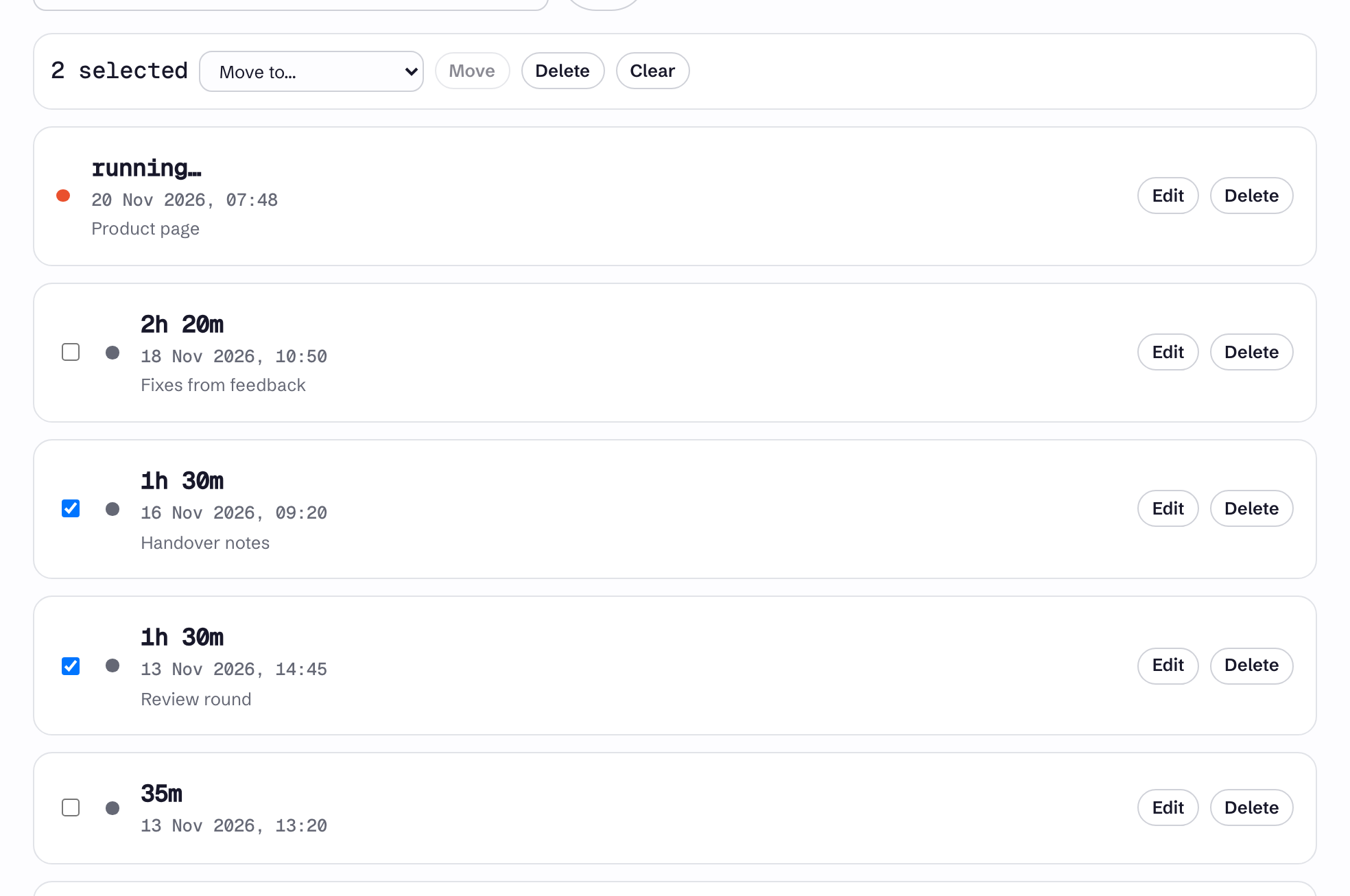
- On the task page, tick the entries you want. On plans without bulk editing the checkboxes do not appear.
- A bar appears above the list showing how many are selected.
- To move them, pick another task in Move to… and choose Move. The list offers the other tasks in the same project.
- To delete them, choose Delete and confirm.
- Clear removes the selection.
You can select finished entries only, and only those you are allowed to edit. A running timer has no checkbox.
When a bulk action is refused
A bulk action is all or nothing. If any selected entry is on an invoice, draft included, the whole action is refused and nothing changes. See Add and edit time entries.
One action can cover up to 500 entries.